
Group Git
Objectives
After this lesson students will be able to
- Describe the different steps of the git workflow process
- Explain basic git commands in terms of this model, e.g., commit, add, log
- Safely work on a feature branch and merge it back to the main branch
- Be aware of 2 pitfalls when working with git in a Group and how to resolve/avoid them.
The Git Workflow

| Layer | Description |
|---|---|
| Working Directory | Local file system (your computer's files like normal) |
| Staging Area | Changes that have been added and are ready to commit |
| History | Changes that have been committed in a series of commits uniquely identified by a SHA1 hash |
| Remote | An associated version of the repository on a remote host accessible via networking |
The first three layers are ones we've seen before. The working directory is the normal files on your machine; the staging area are files that will be included in the next commit; history denotes all committed changes.
We've also been working with remotes when cloning/pushing from github.
Git Command Review
Now let's go over some git commands used in the workflow. Each command will typically either be used to inspect the changes at a particular layer(s) or it will transition a set of changes from one layer to another.
| Command | Function | Data Layer(s) |
|---|---|---|
| add | move changes | WD -> Staging |
| commit | move changes | Staging -> History |
| status | inspect changes | WD/Staging/History (via what commit is the last one) |
| branch | inspect | WD/History (via what branch is current) |
| log | inspect | History |
| push | move changes/sync | Local History -> Remote History |
| pull | move changes/sync | Remote History -> Local History/WD/Current Branch |
| checkout | move index | WD (moves WD reference to a different HEAD of History) |
| merge | move changes | applies new changes from one branch to the HEAD of the current branch |
Let's look at an example and outline the steps up to committing and pushing to origin:
Feature Branching + Merging
Conceptually what branching looks like:
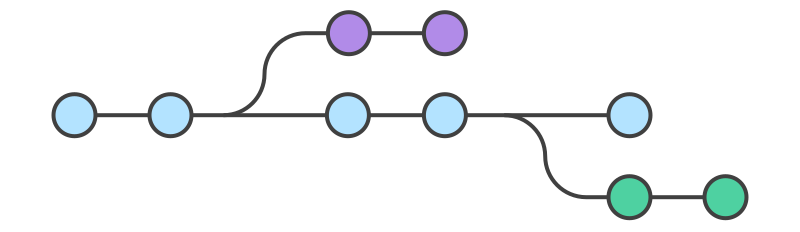
This is what is happening under the hood:

Main branch - Code Along
Create a new folder called git-demo that will not be nested inside an existing git repo
mkdir git-demoInitialize this as a new git repo
git init

Initialized empty Git repository in /Users/username/Desktop/seir-flex-hypatia/unit3/lectures-dev/git-lecture-test2/.git/
Create a new file called hello.js
touch feature-hello.jsAdd a function called: hello
function hello() { }Git add and commit changes.
git add .
git commit -m 'feature-hello - added hello function'
Look at the log files:
git log

commit 6f25491daadbd6ecabe0bd9499016be4133abd3b (HEAD -> main)
Author: Arthur Bernier <ma2bernier@gmail.com>
Date:   Wed Jul 15 08:10:31 2020 -0400

  feature-hello - added hello function
Try using the git log --oneline flag
git log --oneline

6f25491 (HEAD -> main) added hello function
Create a new online git repo called git-demo
Add a new remote called origin to your local repo and use the url from the git repo
git remote add origin git/github remote repo urlPush to the origin branch to the remote repo
git push origin mainFeature Branch - Code Along
As a project grows, it can help substantially to break out sets of changes into their own branches which are subsequently merged back into the main branch. As you know, these branches can also be pushed to github.

Let's check out a new feature branch
 git checkout -b feature-bye

 Switched to a new branch 'feature-bye'
Confirm the branch exists and is the active branch: git branch
* feature-bye
  main
Create a new file called: bye.js
touch bye.jsAdd a function called: bye
function bye() { }Git add and commit changes.
git add .
git commit -m 'feature-bye - added bye function'
Git log and confirm that both commits are there
❯ git log
commit 065aecf896862a0f8446a6da34106f82cf3018b6 (HEAD -> feature-bye)
Author: Arthur Bernier <ma2bernier@gmail.com>
Date:   Wed Jul 15 08:17:21 2020 -0400

    feature-bye - added bye function

commit 6f25491daadbd6ecabe0bd9499016be4133abd3b (main)
Author: Arthur Bernier <ma2bernier@gmail.com>
Date:   Wed Jul 15 08:10:31 2020 -0400

    feature-hello - added hello function
Try using the git log --oneline flag
git log --online

065aecf (HEAD -> feature-bye) feature-bye - added bye function
6f25491 (main) feature-hello - added hello function
Chekcout the main branch and confirm that bye.js file doesn't exist
git checkout mainGit log and confirm that the commit message from the feature-bye branch doesn't exist
git log

commit 6f25491daadbd6ecabe0bd9499016be4133abd3b (HEAD -> main)
Author: Arthur Bernier <ma2bernier@gmail.com>
Date:   Wed Jul 15 08:10:31 2020 -0400

    feature-hello - added hello function
Merge the feature-bye branch into main
git merge feature-byeUpdating 6f25491..065aecf
Fast-forward
bye.js | 3 +++
1 file changed, 3 insertions(+)
create mode 100644 bye.jsGit log and confirm that the feature-bye branch is now included in the logs
commit 065aecf896862a0f8446a6da34106f82cf3018b6 (HEAD -> main, feature-bye)
Author: Arthur Bernier <ma2bernier@gmail.com>
Date:   Wed Jul 15 08:17:21 2020 -0400

    feature-bye - added bye function

commit 6f25491daadbd6ecabe0bd9499016be4133abd3b
Author: Arthur Bernier <ma2bernier@gmail.com>
Date:   Wed Jul 15 08:10:31 2020 -0400

    feature-hello - added hello function
Push the feature-bye branch to the remote repo
git push origin feature-bye

remote:
remote: Create a pull request for 'bye' on GitHub by visiting:
remote:      https://github.com/ma2bernier/git-testing/pull/new/bye
remote:
To https://github.com/ma2bernier/git-testing.git
 * [new branch]      bye -> bye
Since the feature branch has already been merged with main we should delete the local branch
git branch -d feature-byeLet's assume that the team has also downloaded and merged the feature branch we pushed to the remote repo and now delete the remote branch as well.
git push origin --delete feature-byeThat completes the successful workflow of creating a feature branch and merging to main
Conflict Resolution
Feature branches are great but can lead to difficulties
when overlapping or incompatible sets of changes are merged back in to a common branch, e.g., main. Git is pretty good about safely handling multiple streams of changes, but sometimes you have to manually pitch in to get the job done.
If you are trying to use git merge and it produces a conflict the output will look something like this:
Auto-merging convo.js
CONFLICT (content): Merge conflict in convo.js
Resolved 'convo.js' using previous resolution.
Automatic merge failed; fix conflicts and then commit the result.
To see the beginning of the merge conflict in your file, search the file for the conflict marker <<<<<<<. When you open the file in your text editor, you'll see the changes from the HEAD or base branch after the line <<<<<<< HEAD. Next, you'll see =======, which divides your changes from the changes in the other branch, followed by >>>>>>> BRANCH-NAME. source
Create a new file called: stringly.js
touch stringly.jsCheckout a new branch called feature-upperCase
git checkout -b feaature-upperCaseAdd a function called toUpperCase
function toUpperCase() {}Add and commit the changes
git add .
git commit -m  'feature-upperCase - added toUpperCase function'
git checkout mainMerge feature-upperCase to main
git merge feature-upperCaseCheckout a new branch called feature-lowerrCase
git checkout -b feature-lowerrCaseAdd a function called toUpperCase
function toLowerCase() {}Add and commit the changes
git add .
git commit -m  'feature-lowerCase - added toLowerCase function'
Checkout main
git checkout mainMerge feature-lowerCase with main
git merge feature-lowerCaseYou should see a message indicating there has been a conflict and when you examine stringly.js you will see the following:
<<<<<<< HEAD
function toUpper(str) {
  return str.toUpperCase();
=======
function toLower(str) {
  return str.toLowerCase();
>>>>>>> lower
}
Resolve conflict by either removing the utility lines (a rarely available solution but it works in this case), or remove one set of changes. Either way, whatever the state of the file when we save+quit, that will be what ends up being committed so make sure it's valid!
Exercise: Local Conflict Resolution
Go here and follow the instructions
Pull Request And Merging In Github
The instructor will ask the students to fork/clone this repo, if they haven't already done so, and to create a new file caalled: <student-name>.md where they will include a random fact about themselves.
They will add/commit and push to their forked copy of the repo and the instructor will choose a volunteer to share their screen and make a Pull Request.
The instructor will then walk through the process of approving and merging the pull request.
These may prove helpful in the following exercise
Exercise: Group Gitting
It's Go Time: Git 'r Done
Bonus: Rebasing branches
If time permits the instructor willl demo how to rebase branches.

Rebasing rewrites history. This adds the commits from another branch and puts your commits on top of your branch. (Actually it puts new copies of your commits on top). Typically, we rebase main from another branch. This does not add an extra merge-commit.
Ex: From some branch: git rebase main will take anything that was added to main since branched off (or last rebased) and put those commits before yours. Your commits are then added on top of your branch.
Technically, git pull is a shorthand for git fetch origin HEAD together with git merge origin/HEAD. In other words, pull is an alias for fetching the changes from origin and merging them into the local copy of the branch. adding the --rebase flag to pull will rebase rather than merge, thereby not adding a merge commit to your history but carrying with it additional pain when conflicts emerge.
Bonus: Resets (Resources)
git reset can be used to undo a committed history and place the changes back either into the staging area --soft or in the working directory --mixed or discard them entirely --hard. Be very careful with git reset especially with the --hard option since this is potentially destructive.
If you undo a public history you will have to git push --force after making the changes.
How to Reset (almost) anything
Extra Resources
- An Incredible Git Tutorial probably the second most helpful git thing I've ever come across . . .by our friend
Jim Weirich - a nice set of cheat sheets from Atlassian
- A more in depth and practical look at git rebase Helpful to strengthen your rebase sorcery
- Linus Torvalds nerding out about git Buckle up
- Obligatory Junio Hamano interview